 RemoveGreen

Green screen and blue screen are both production backgrounds used for chroma keying, but the better choice depends on what is in the shot. The key question is not which color is universally superior; it is which background creates the clearest separation from the subject with the least spill, shadow, and fine-edge damage.
The basic difference is color separation
A chroma keyer removes a selected range of background color so the subject can be placed over transparency or another scene. Green and blue are common because they can be distinct from many subjects, but the useful choice is the color that is least present in the foreground and easiest to light evenly.
That makes this a production decision rather than a software preference. A blue shirt, green prop, reflective surface, or colored light can change which screen gives the keyer more reliable information.
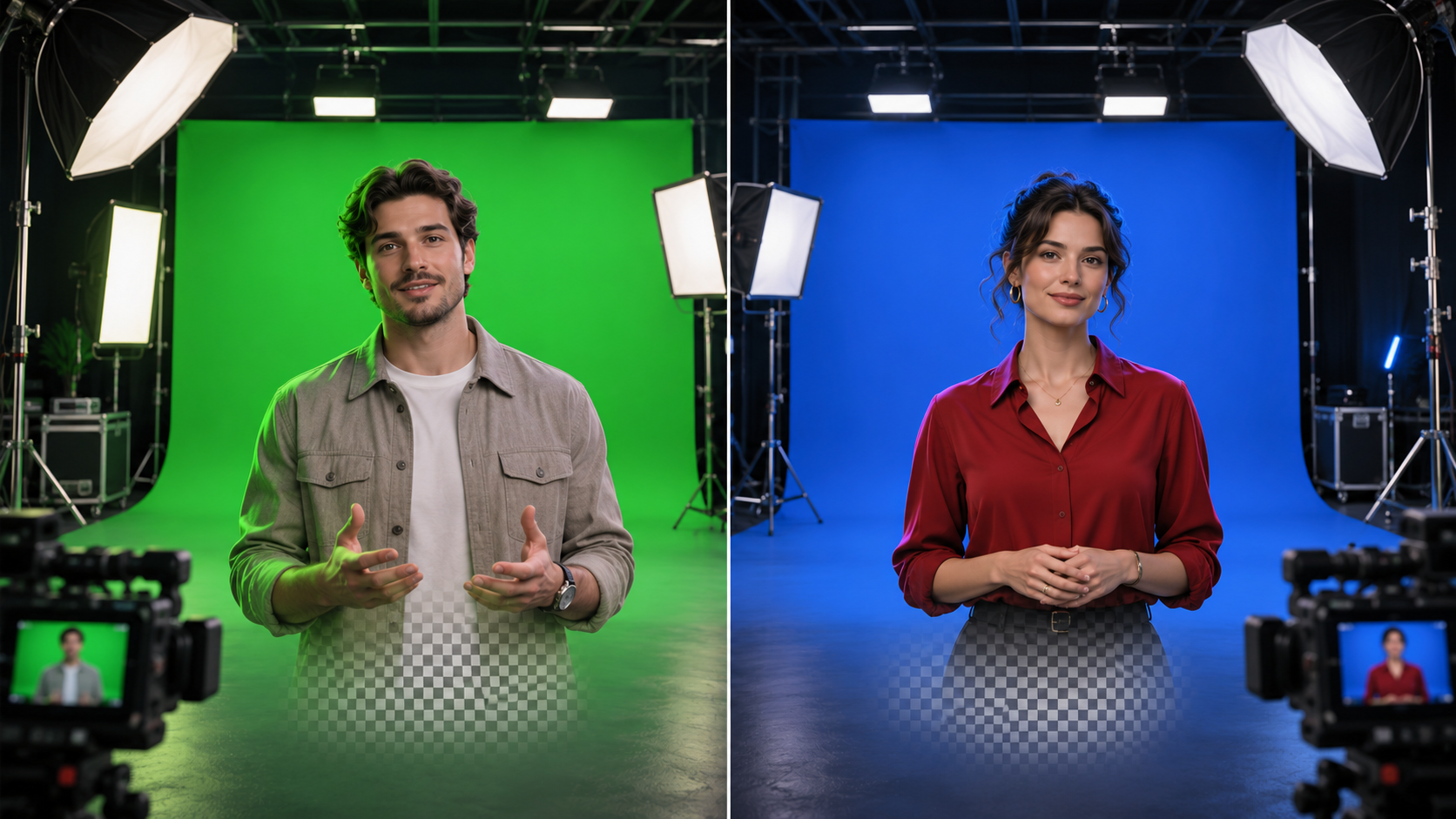
Why green screen is common
Green is often chosen because many digital cameras capture strong detail in the green channel, and it is frequently separated from ordinary skin tones. That can make a well-lit green background efficient for presenter, product, and studio footage.
Green is not automatically clean. Green spill can reflect onto hair, skin, glasses, or glossy objects, especially when the subject stands close to the screen. Distance, soft even lighting, and a subject that does not share the key color are still essential.
When blue screen can be the better fit
Blue can help when green appears in the subject, wardrobe, props, or set. It may also be useful when the production needs to reduce green reflections on a subject. The result still depends on exposure, screen uniformity, camera settings, and the amount of separation between subject and background.
Blue is not a shortcut around difficult footage. A poorly lit blue screen can produce uneven shades and soft edges just as a poorly lit green screen can. Evaluate the whole frame, including hair, motion-blurred hands, translucent fabric, and reflective surfaces.
Green screen vs blue screen: a practical checklist
- Choose the color least present in the subject, wardrobe, props, and important reflections.
- Light the chosen screen evenly and keep the subject far enough away to reduce shadows and spill.
- Check whether the camera and lighting preserve useful detail in the screen without clipping or heavy noise.
- Use a representative frame with hair, hands, and reflective objects to judge the edge—not only a clean center area.
- Test the final composite against both light and dark backgrounds before committing to the setup.
How this maps to RemoveGreen
RemoveGreen’s current standard workflow is browser-first and color-based. The tool is built around green-screen detection and sampling, with Strength, Edge, and Spill Removal controls for refining the result. It can preview a transparent cutout or a replacement background after the green is removed.
Because the current implementation is green-specific, do not treat this page as a claim that blue-screen processing is supported. If your footage uses a blue screen, first confirm that the tool and workflow you plan to use explicitly support that key color. For verified green-screen footage, use the green-screen removal tool to inspect a representative clip before choosing an export path.
The production rule to remember
Pick the screen color that gives the subject the cleanest separation with the fewest compromises. Green may be the practical default for one shot, while blue may be safer for another. Lighting, distance, wardrobe, reflections, and the final background all matter more than the label on the screen.
Frequently asked questions
Is green screen better than blue screen?
Neither color is always better. Green is often a practical choice when the subject does not contain green and the camera captures the background with useful detail. Blue can be a better production choice when green appears in the subject, props, or reflected light.
Why is green screen used so often?
Green is commonly used because it can provide strong color separation from many skin tones and cameras often capture plenty of detail in the green channel. Even lighting and distance from the screen still matter more than choosing a color by habit.
When should I choose a blue screen?
Consider blue when the subject wears green, includes green props, or is affected by green reflections. The choice should follow the colors and lighting in the shot, not a universal rule.
Can RemoveGreen process blue-screen footage?
RemoveGreen’s current browser Chroma Key workflow and automatic detection are green-screen specific. This guide explains blue screens as a production concept; do not assume the tool’s green-screen controls or Auto Detect will select blue automatically.