 RemoveGreen
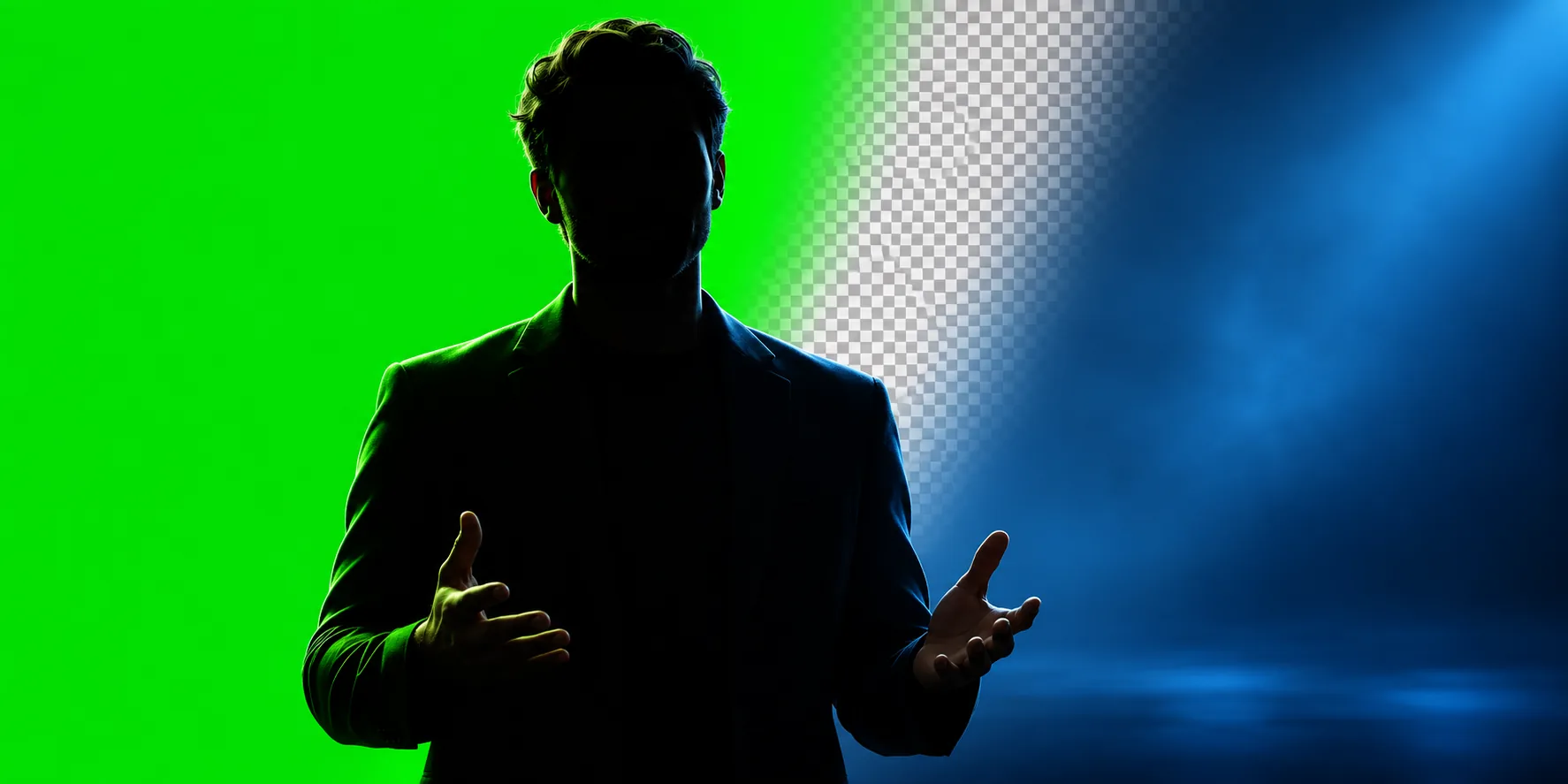
Chroma key is the color-based method behind many green-screen effects. Instead of tracing a subject frame by frame, an editor samples a background color, identifies pixels close to that color, and turns them transparent or replaces them with another scene. The quality of the result depends on both the keying settings and the footage that goes into them.
Chroma key in plain language
A video frame contains a foreground subject and a background. Chroma key treats a selected range of background color as a signal to remove. The remaining subject can then sit over a new image, another video, a solid color, or a transparent layer for later compositing.
The technique works best when the background color is visually distinct from the subject. It is not magic object recognition: if the subject contains the selected color, or if the background color spills onto the subject, the editor has less information to separate the two.
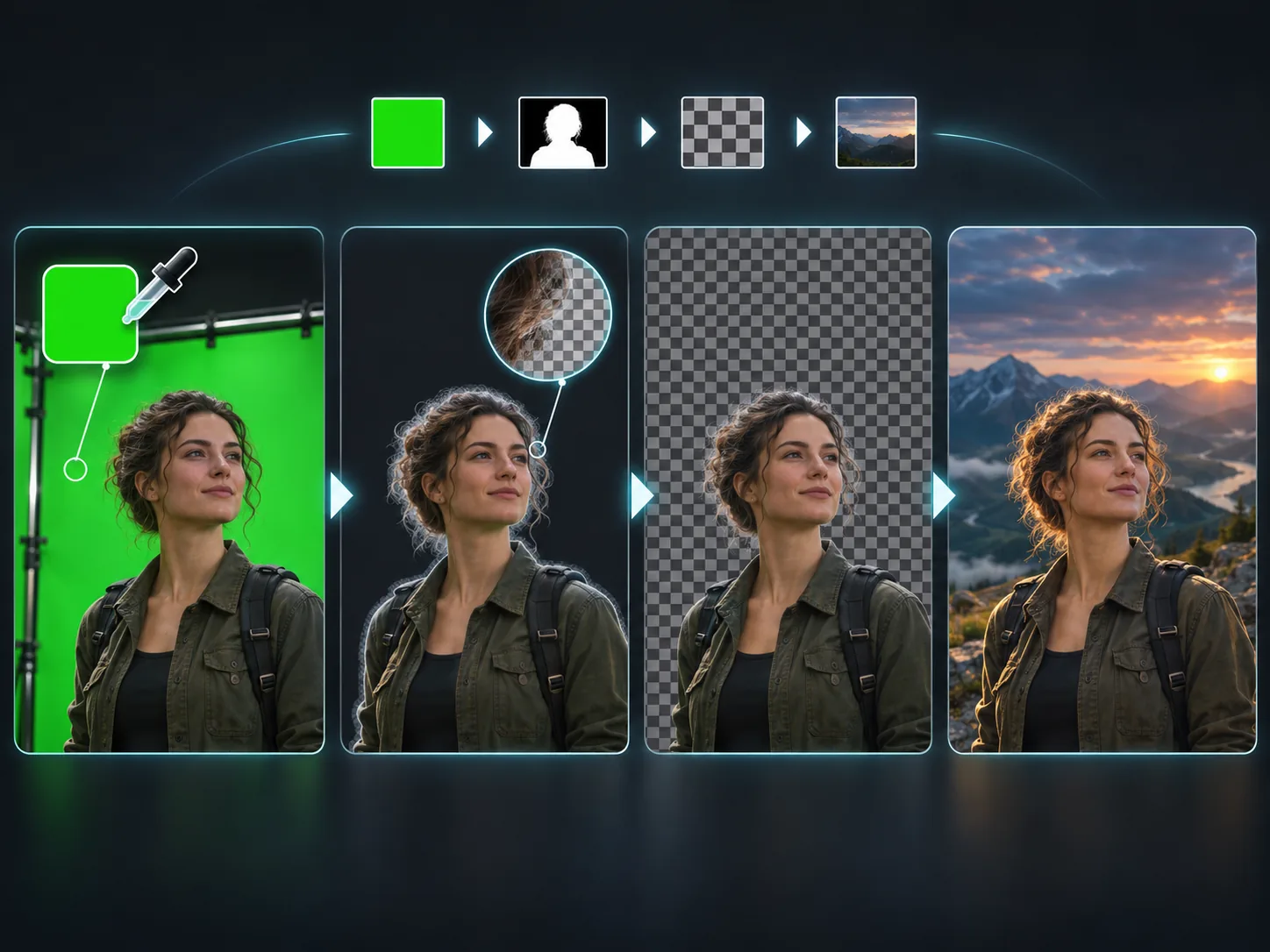
How the keying process works
First, the editor chooses a representative background color. Some tools use Auto Detect; others let you sample a point in the frame. The keyer then compares nearby pixels against that sample and assigns transparency according to how closely they match.
The boundary is rarely a perfect on-or-off decision. Pixels at hair, motion-blurred hands, translucent fabric, and soft shadows can contain a mixture of foreground and background color. A useful key therefore manages both the main background removal and the transition around the subject edge.
Once the background is removed, the foreground can be previewed over a checkerboard or composited with a replacement background. This distinction matters: a transparent cutout remains reusable, while a replacement-background export has already combined the layers into a finished scene.
Why green is used so often
Green is a popular key color because common cameras capture it with strong luminance detail, and it is usually separated from human skin tones. That gives the keyer a useful color difference in many presenter and product shots.
Green is not automatically the right choice. Blue-screen footage can be a better fit when the subject wears green, reflects green light, or needs to be separated from a green prop. The practical rule is to choose a background color that is even, distinct from the subject, and easy to light consistently.
What makes a clean chroma key
- Light the background evenly so the keyer does not have to handle a patchwork of bright and dark shades.
- Keep the subject far enough from the screen to reduce shadows and green spill on skin, hair, clothing, and reflective objects.
- Avoid clothing and props that closely match the key color unless you deliberately want them removed too.
- Inspect hair, shoulders, hands, and motion-blurred edges against both light and dark preview backgrounds.
- Make small Strength, Edge, and Spill Removal adjustments instead of pushing one control until subject detail disappears.
Try the concept on your own footage
RemoveGreen’s Chroma Key workflow lets you upload a video, preview the cutout, adjust the key, and choose the output that matches your next editing step. Use the tool to test a representative clip first, then check the result in the application where you plan to use it.
Frequently asked questions
What does chroma key mean?
Chroma key is a compositing technique that uses color to separate a foreground subject from a background. A video editor identifies the selected color, turns those pixels transparent or replaces them, and keeps the subject in the foreground.
Why is green commonly used for chroma key?
Green is common because cameras usually capture it with strong detail and it is far from many natural skin tones. The best key color still depends on the subject, wardrobe, lighting, and reflections in the shot.
Is chroma key the same as removing a green screen?
They are closely related, but not identical terms. Chroma key describes the color-based method; removing a green screen is the practical result of applying that method to footage.
Can chroma key preserve hair and fine edges?
It can preserve much of the detail when the screen is evenly lit and the subject is separated from it. Motion blur, green spill, compression, and similar colors in the subject can still make fine edges difficult.