 RemoveGreen

Green spill is the green light reflected from a screen onto the subject. It often appears as a green fringe around hair, shoulders, translucent fabric, or reflective objects after the background has been keyed out. The fix is not simply “remove more green”: aggressive keying can erase the very detail you are trying to preserve.
Start with the recording, not the slider
The cleanest key begins with a clean plate. Put distance between the subject and the screen when possible, light the screen evenly, and avoid pointing a hard green reflection back toward the subject. A wrinkled or uneven screen creates multiple shades of green, so one key color has to work harder.
If you already have the footage, inspect a frame with hair and the edge of the clothing visible. Look for green on the subject itself, not only in the background. This tells you whether the main problem is spill, an incorrect key color, or a soft edge caused by motion blur.
The recording setup also determines how much correction is safe. A subject standing close to the screen can carry a broad green wash into skin, hair, and fabric. That wash is different from a thin halo: it may require a selective color correction or a better source clip rather than a more aggressive key. Treat the source quality as part of the diagnosis, not as an afterthought.
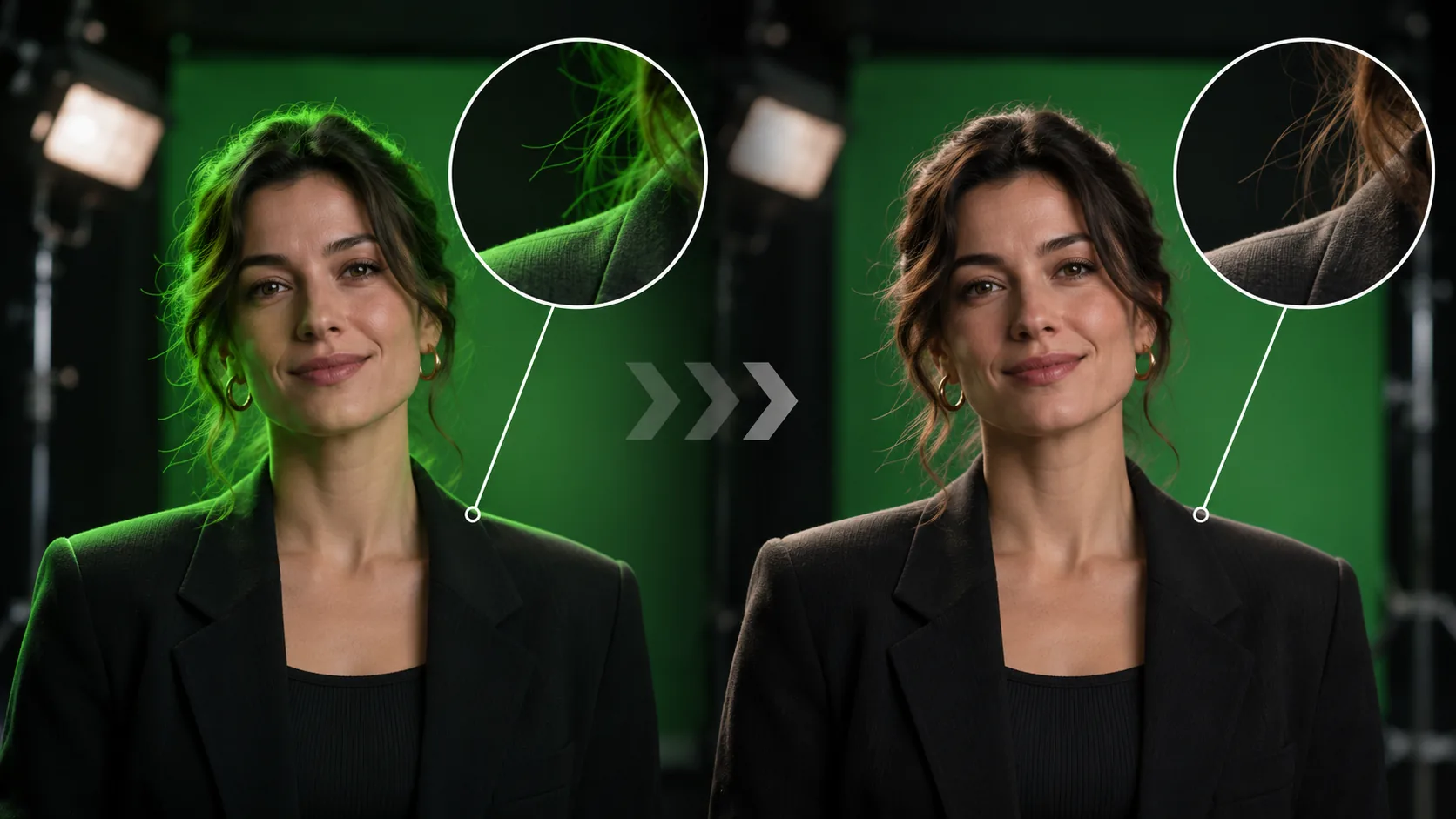
Use a controlled correction order
First run Auto Detect or pick a representative green area. Then preview the cutout over a checkerboard or a solid contrasting color. If the subject edge is intact but tinted, adjust Spill Removal gradually. If parts of the subject disappear, reduce Strength before making more spill changes.
Edge controls are for the transition between foreground and background. Small adjustments can tighten a halo; large adjustments can make hair look cut out or create a dark outline. Move one control at a time and compare the result against the original view.
Use the most revealing parts of the frame as your test targets: hair and motion-blurred hands expose over-keying, while a white shirt or glossy product exposes a green cast. A setting that looks acceptable against a checkerboard can still fail against a warm or saturated background, so test at least two contrasting surfaces before exporting.
A practical four-step workflow
- Upload the original MP4, MOV, or WebM rather than a re-encoded screen recording.
- Use Auto Detect, then inspect the face, hair, hands, and reflective objects in the preview.
- Reduce the green cast with Spill Removal in small steps. If detail disappears, back off Strength or Edge.
- Switch the preview background between checkerboard and a light or dark solid color before exporting.
Know the limits of spill removal
Spill removal cannot reconstruct detail that was never captured. Fine hair against a similarly lit green screen, heavy compression, fast motion, and green reflections on glasses or glossy products can remain difficult. In those cases, a better recording may produce a larger improvement than stronger settings.
RemoveGreen’s standard Chroma Key workflow is designed for browser-first processing. If the footage has difficult edges, the optional AI Green Screen Cleanup is a separate operation: it requires sign-in, shows the estimated Credits cost before confirmation, and has a current limit of 60 seconds.
Check the export before you move on
A transparent result should be tested in the environment where it will be used. A checkerboard preview is a useful visual check, but it is not the same as a destination application correctly rendering alpha. Export transparent WebM when you need the subject without a background, then test it over a contrasting layer before editing the final composition.
Frequently asked questions
Can green spill be removed completely?
Not always. Spill removal can reduce green contamination, but strong reflected light, motion blur, and very fine detail may still need a better source recording or additional editing.
Should I increase Strength to fix green edges?
Usually not first. Start by checking the selected key color, then use Edge and Spill Removal in small increments. Increasing Strength too far can remove subject detail.
Does RemoveGreen upload my video?
Standard Chroma Key processing and previews are designed to run in the browser. AI Green Screen Cleanup is different and requires an explicit temporary upload.