 RemoveGreen

The short answer is that transparent WebM is the practical choice in this workflow when you need a foreground video with an alpha channel. MP4 remains the safer choice for broadly compatible finished video, but “MP4” or “WebM” alone does not describe every codec and playback combination.
Container and codec are different
A container is the file wrapper. A codec describes how the video is encoded. Transparency depends on the encoded pixel data and the renderer, not just the filename. That is why two files with familiar extensions can behave differently across browsers, editors, and social platforms.
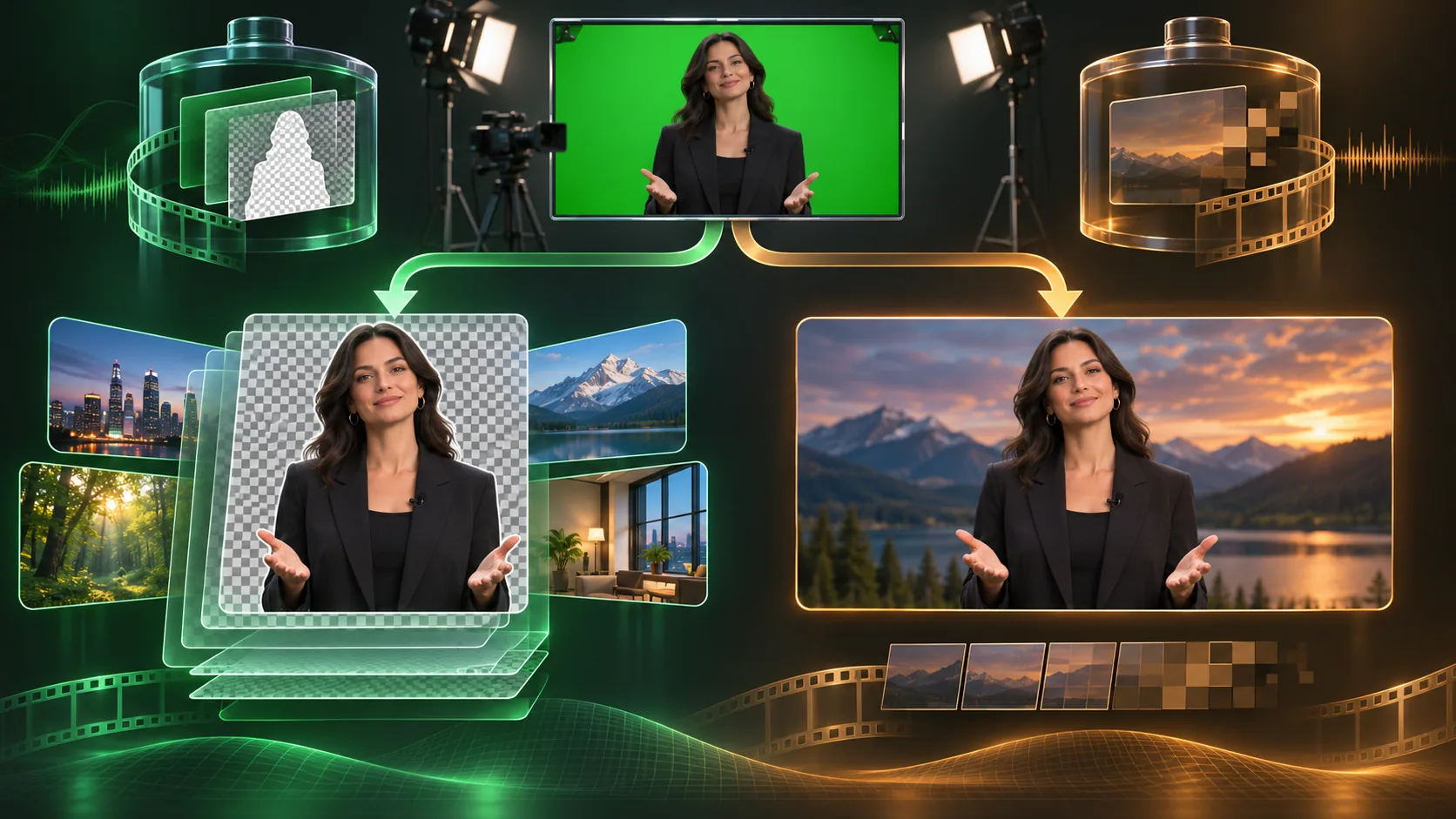
For a green-screen project, define the deliverable first: do you need a cutout to place over another layer, or do you need a finished video that already has its background? The answer determines whether alpha or compatibility is the priority.
This distinction prevents a common handoff mistake. A team may request “an MP4 with transparency” when it really needs either an alpha-capable foreground asset or a finished MP4 with the background already composited. Ask what the next application needs to receive, not only what file extension it accepts.
When WebM is the better fit
Choose transparent WebM when you want to preserve the keyed subject without baking in a new background and the destination supports the relevant WebM alpha workflow. This is useful for overlays, browser compositions, and assets that will be placed over multiple backgrounds later.
Always test the exact destination. A compatible browser preview does not guarantee that a presentation tool, mobile editor, or social platform will preserve and display the same alpha channel.
For reliable delivery, keep a short test clip and a real project clip. Verify both over a light and dark background, then upload the exact production file to the destination tool. This catches cases where a small demo works but long footage, motion blur, or a different export profile fails later.
When MP4 is the better fit
Choose MP4 for an ordinary finished composition or when the destination strongly favors H.264-style compatibility. Once the subject is composited over a color, image, or video, transparency is no longer the requirement; consistent playback is.
An MP4 with a black background may be perfectly valid as an opaque finished video. It is only a problem when you expected the background to remain transparent.
A simple decision checklist
- Need a cutout for later compositing? Start with transparent WebM.
- Need a finished video for broad playback? Use ordinary MP4.
- Need a replacement image or video behind the subject? Export the composited result, not an alpha-only asset.
- Need to publish to a third-party platform? Test its actual upload and playback behavior before delivering the final file.
How this maps to RemoveGreen
RemoveGreen accepts MP4, MOV, and WebM input up to 500MB. Standard Chroma Key runs in the browser, and the editor lets you preview transparent output or a replacement background. Transparent WebM export is available up to 720p and 30 seconds on the Free plan; current paid export options and Credit usage are shown in the product before a paid operation.
The distinction matters because background replacement and transparent export are separate outcomes. Pick the output based on what the next step needs, not on which extension looks more familiar.
Frequently asked questions
Is MP4 transparent?
MP4 is widely compatible for ordinary video, but it is not a dependable choice for an alpha channel in the workflow described here. Use transparent WebM when you need the foreground without a background.
When should I choose WebM?
Choose WebM when preserving transparency is the priority and your destination supports the relevant WebM alpha workflow.
Does RemoveGreen accept MP4 and MOV input?
Yes. The current upload accepts MP4, MOV, and WebM video files up to 500MB.