 RemoveGreen

A transparent WebM can appear to have a black background for two very different reasons: the file may contain transparency but the player does not display it, or the export may have flattened the foreground onto black. Test the file deliberately before re-exporting or changing settings.
Why black is a misleading preview
Transparency is not a visible color. It is an alpha value that tells a renderer how much of the pixel should show. When a player has no alpha support, it may substitute black, white, or another default surface. That preview says more about the player than about the file.
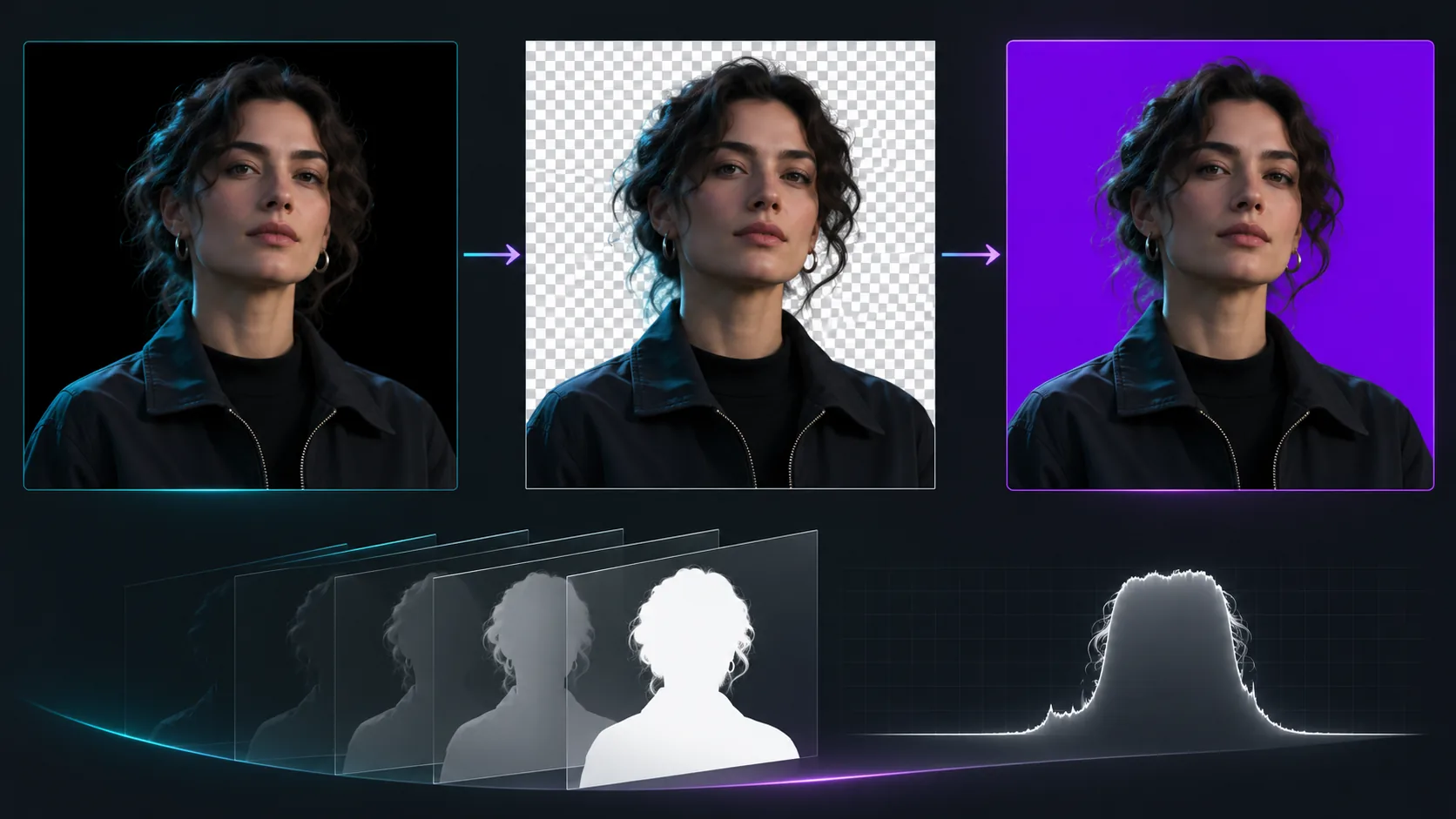
Start by opening the file in a current browser or editor known to support your WebM workflow. Place it over a bright color and then a dark color. If the background changes while the subject stays visible, the alpha channel is probably being interpreted correctly.
Separate playback from export
A reliable diagnosis uses two checks. First, inspect the same file in another compatible playback environment. Second, composite it over a known background instead of judging the standalone player window. If both checks show an opaque black rectangle, the export path may have flattened the video or selected an ordinary video output.
Do not treat the file extension alone as proof of transparency. WebM is a container; the actual codec and pixel format still matter. The destination also needs to support the combination you exported.
Keep the original download while testing. Re-exporting repeatedly can replace the only file that would have shown whether the problem was the player, the browser, or the export setting. Record which application produced the black preview and which background you used for the composite test; that small bit of evidence makes the next correction much faster.
A step-by-step diagnosis
- Confirm that the source was keyed rather than exported with a black solid background.
- Preview the result over a checkerboard and a solid color.
- Open the downloaded WebM in a second compatible browser or editor.
- Place the video above a background layer and check whether the background shows through.
- If it remains opaque black everywhere, return to the export settings and choose the transparent WebM path instead of an ordinary MP4 composite.
What RemoveGreen exports
RemoveGreen’s browser-first workflow can preview the removed foreground against a checkerboard and export transparent WebM. The current Free plan supports transparent WebM up to 720p and 30 seconds without a watermark. Higher-resolution exports are subject to the current paid plan and Credit rules shown in the product before processing.
The tool also supports ordinary background replacement. That is a different result: if you choose a solid color, image, or video background, you are creating a composited video rather than preserving an empty alpha background.
When to use another format
Use transparent WebM when the next tool or browser workflow supports it and alpha is central to the project. Use ordinary MP4 when compatibility is more important than transparency and you are exporting a finished composition. If a platform silently converts the file, test the uploaded result there rather than assuming the original alpha survived.
Frequently asked questions
Why does a transparent WebM look black?
The player may be showing a black fallback because it does not render the alpha channel. Test the file over a contrasting background in a browser or editor that supports WebM alpha before concluding that transparency was lost.
Does a black preview prove that alpha is missing?
No. A black preview can be a playback limitation. Check the file in another compatible environment and place it over a visible background.
Can I export a transparent video for free?
RemoveGreen supports transparent WebM export up to 720p and 30 seconds on the Free plan. Higher-resolution exports may require a paid plan and Credits.