 RemoveGreen
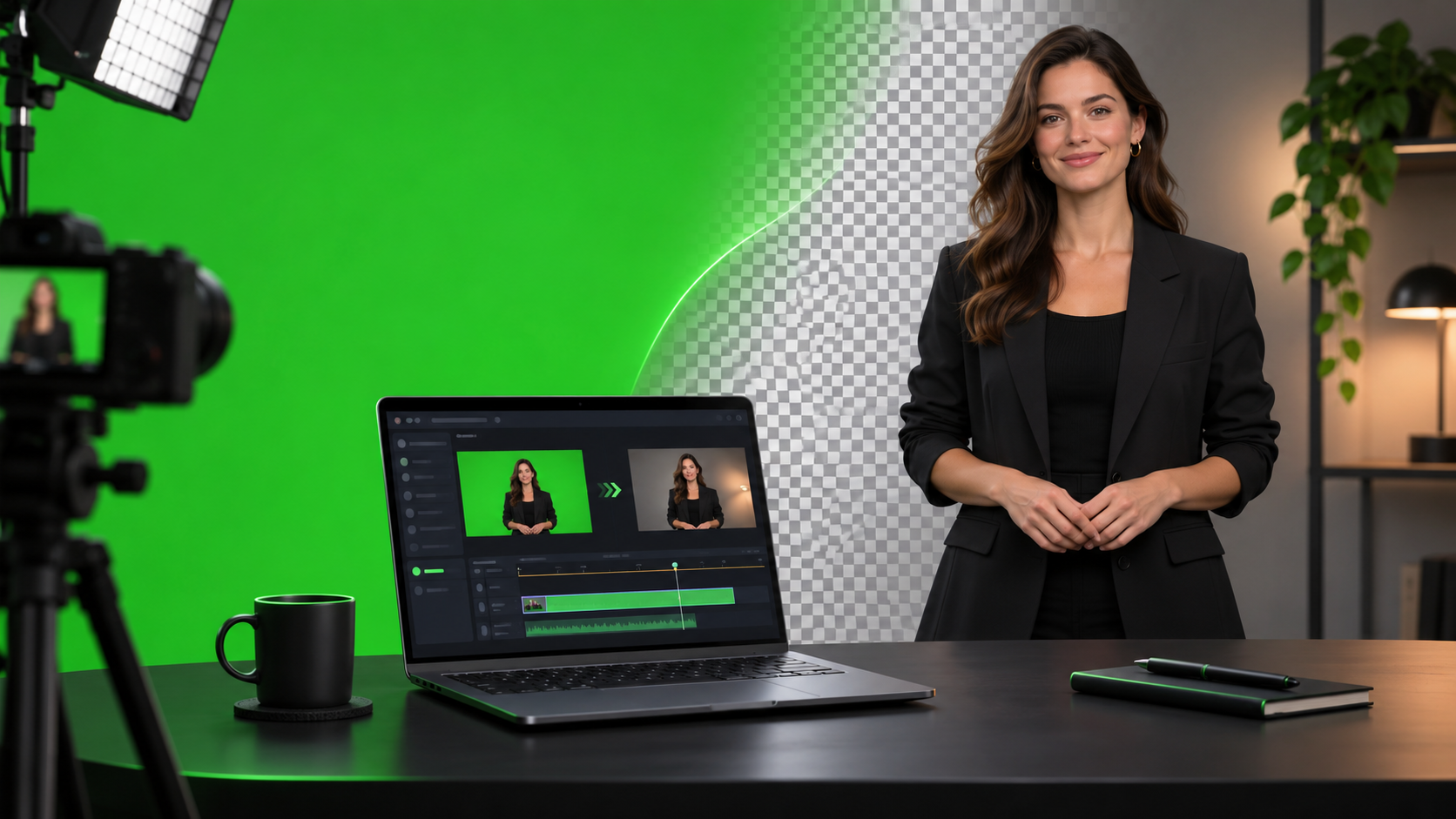
You do not need to begin with a desktop video editor just to test a green-screen clip. A browser-based Chroma Key workflow can take you from upload to preview in one place, while still leaving room to inspect the footage and decide whether the source is good enough for a clean result. The important distinction is that “no installation” simplifies access; it does not remove the need to diagnose lighting, edges, and motion.
What a browser-based workflow can do
The RemoveGreen standard tool is designed around browser-first Chroma Key processing. Open the tool, provide the original video, choose a representative green area or use Auto Detect, and inspect the cutout before deciding what to export.
This approach is useful when you want to test a clip on a computer without setting up a full editing application. It is also a practical first pass for short experiments, client previews, and footage that only needs a straightforward color-based separation.
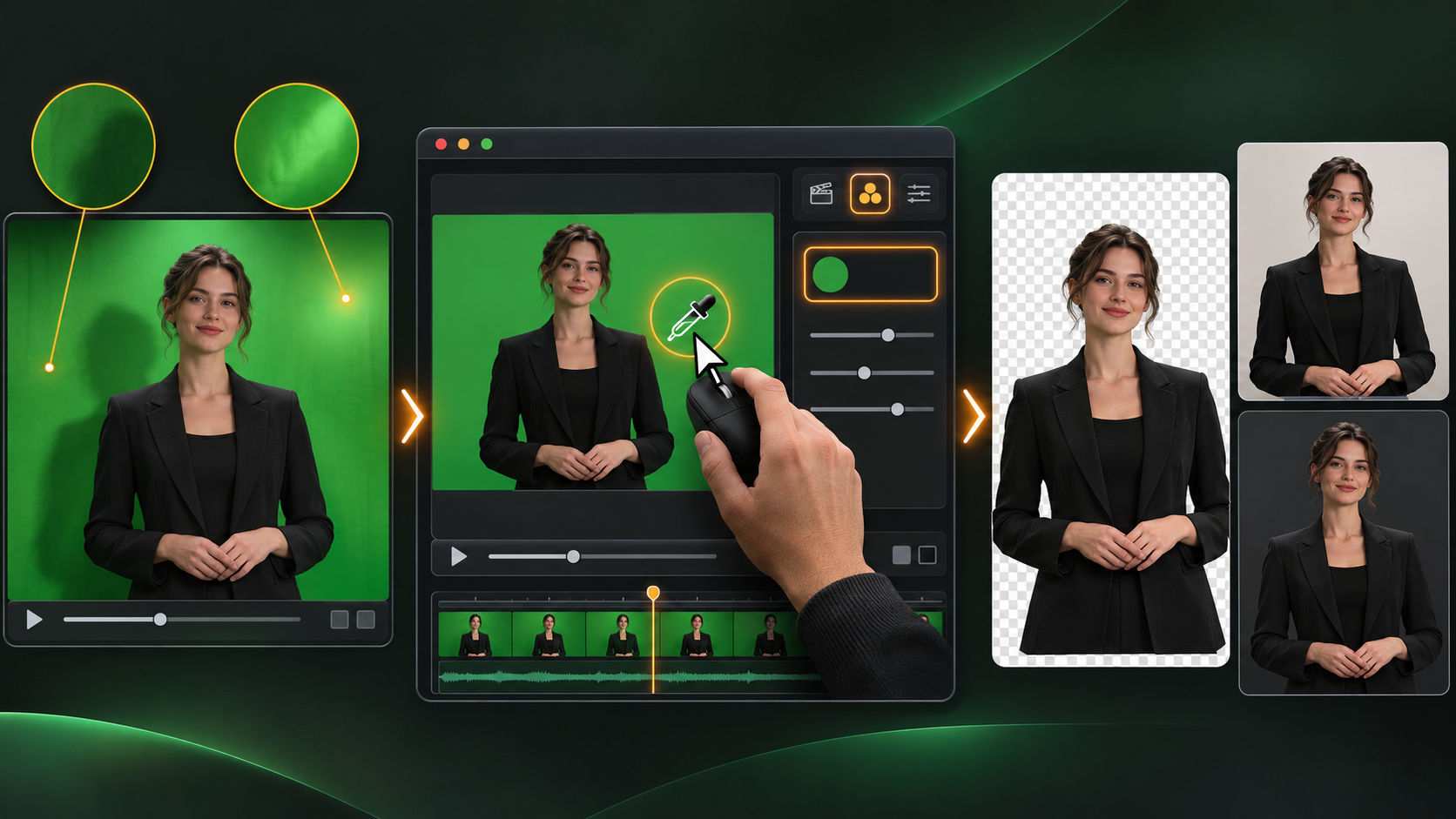
A no-install workflow from upload to preview
- Open the RemoveGreen green-screen removal tool in your browser.
- Upload the original MP4, MOV, or WebM clip. The current uploader accepts files up to 500MB.
- Start with Auto Detect or sample an evenly lit part of the green screen. Avoid a shadow, bright reflection, or an area covered by the subject.
- Inspect the preview on the checkerboard and look closely at hair, shoulders, hands, clothing, and reflective objects.
- Make one small Strength or Edge adjustment at a time. If the subject loses detail, back off instead of pushing the key harder.
- Use Spill Removal to reduce a green cast only after the main cutout is stable, then compare the result against light and dark preview backgrounds.
- Choose the output that matches the next step: a transparent foreground for later compositing, or a replacement background for a finished scene.
How to diagnose a weak first result
If large areas of the green screen remain, the selected color may not represent the whole background. Try a more even sample and check whether the screen has strong shadows or multiple shades. A single control cannot make uneven lighting behave like a uniform screen.
If hair or clothing disappears, the key is probably too aggressive or the subject contains a color close to the selected green. Reduce the setting that is removing detail, then test a representative frame again. Do not judge only the center of the frame: edges and motion-blurred hands are usually the first places a weak setup shows up.
If the subject has a green halo, treat it as spill or edge contamination rather than proof that more background should be removed. Small Spill Removal changes can help, but strong reflected green light may require better source footage or additional editing after this browser pass.
Understand the browser workflow limits
Browser-first processing is convenient, but the quality ceiling still comes from the video. Uneven screen lighting, shadows, motion blur, compression, fine hair, and green reflections can leave soft or contaminated edges. More aggressive settings may hide the problem by removing subject detail.
The browser and destination application also matter. A preview is evidence that the current environment can display the result; it is not a guarantee that another editor or publishing platform will interpret every output the same way. Keep the original clip and test the downloaded result in the application where you plan to use it.
When installing software may still make sense
A browser workflow is a good starting point when you need a quick, accessible test or a simple keyed result. A dedicated editor may be more appropriate when you need frame-by-frame masking, detailed color correction, complex compositing, or a larger multi-asset project. That is a workflow choice, not a requirement for trying the basic removal process.
Start with a representative section of the footage before committing to a longer edit. If the browser preview already shows missing hair, heavy spill, or holes in the subject, changing tools may not fix the source problem; improving lighting or recording distance can make a larger difference.
Frequently asked questions
Can I remove a green screen without installing a video editor?
For the standard RemoveGreen workflow, you can open the tool in a browser, upload a supported video, adjust the Chroma Key result, and preview the output without installing a desktop editor. The result still depends on the quality of the source footage and the browser environment.
What video files can I upload to the browser tool?
The current uploader accepts MP4, MOV, and WebM video files up to 500MB. If a file is rejected, check its extension and size before troubleshooting the key.
What should I do if the first browser preview looks wrong?
Check the selected green sample first, then inspect hair, hands, clothing, and reflective objects. Make one small Strength or Edge adjustment at a time, and use Spill Removal only after the main cutout is stable.
Does browser-based processing work for every green-screen video?
No workflow can guarantee a clean result for every clip. Uneven lighting, motion blur, compression, green reflections, and fine hair can limit a color-based key. Use the preview to decide whether the source is suitable before spending time on detailed adjustments.