 RemoveGreen
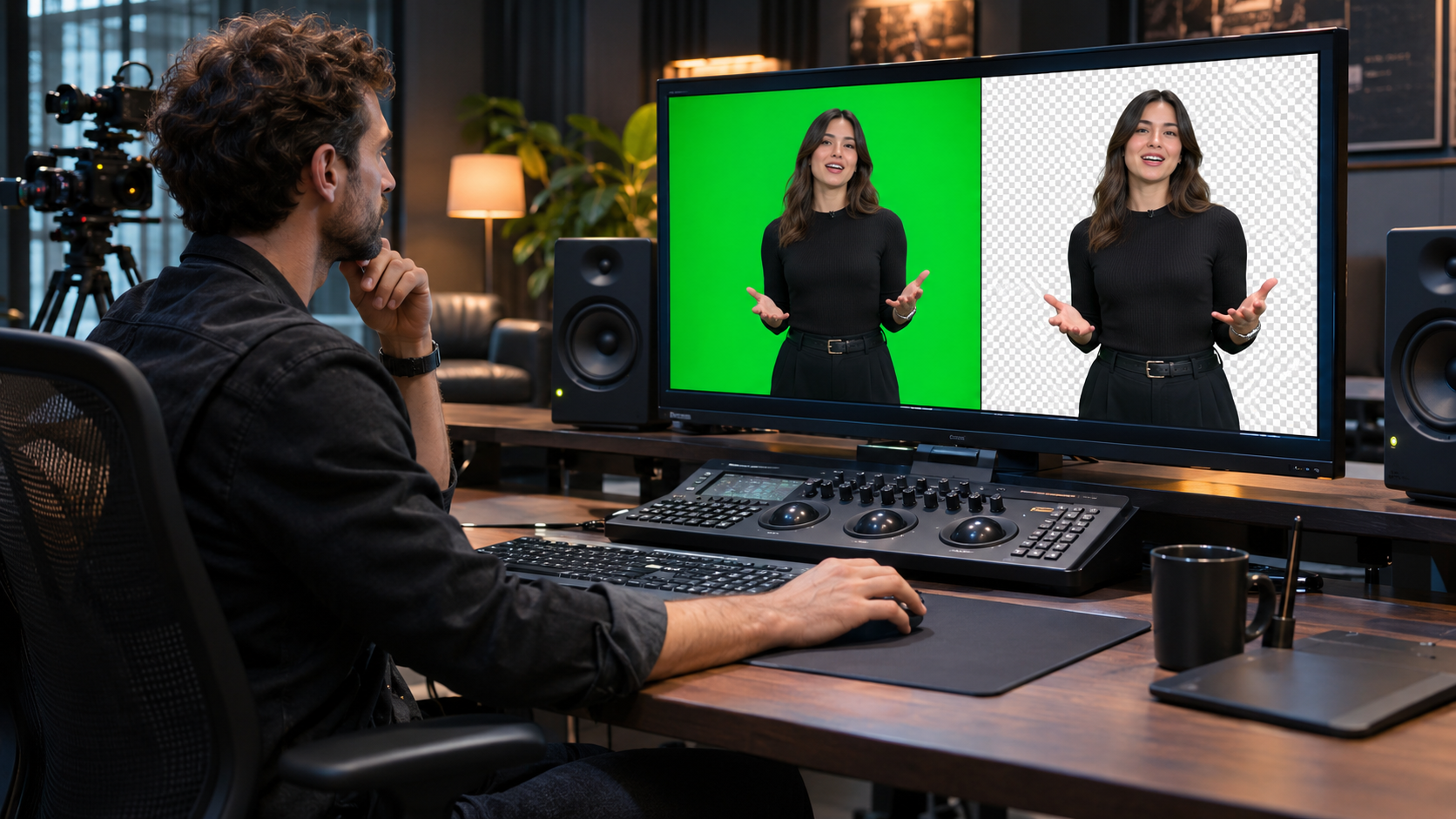
Yes, a 4K source can be useful for green-screen work—but “can remove a green screen from 4K video?” has two separate answers. RemoveGreen can accept supported MP4, MOV, or WebM uploads up to 500MB, while the current product export path tops out at 1080p. That means 4K can be a source-quality advantage without being a 4K delivery option.
Separate 4K input from 4K output
Resolution describes the dimensions of the video, not whether the background can be keyed cleanly. A 4K source usually contains more pixels than a 720p or 1080p deliverable, which can give you more room to inspect hair, hands, and fine edges before export. It does not change the basic color-based nature of Chroma Key.
RemoveGreen’s current uploader accepts MP4, MOV, and WebM files up to 500MB. The practical question is therefore whether your particular 4K file fits the upload limit and can be decoded reliably by the browser. A high-bitrate 4K file may reach 500MB quickly, especially when it is long or uses an editing-friendly codec.
The output is a separate constraint. The current product offers 720p and 1080p export paths, including higher-resolution paid options where the product shows the applicable Credits requirement. Do not describe the current workflow as a 4K exporter: a 4K source may be processed or previewed, but the delivered export is not 4K.
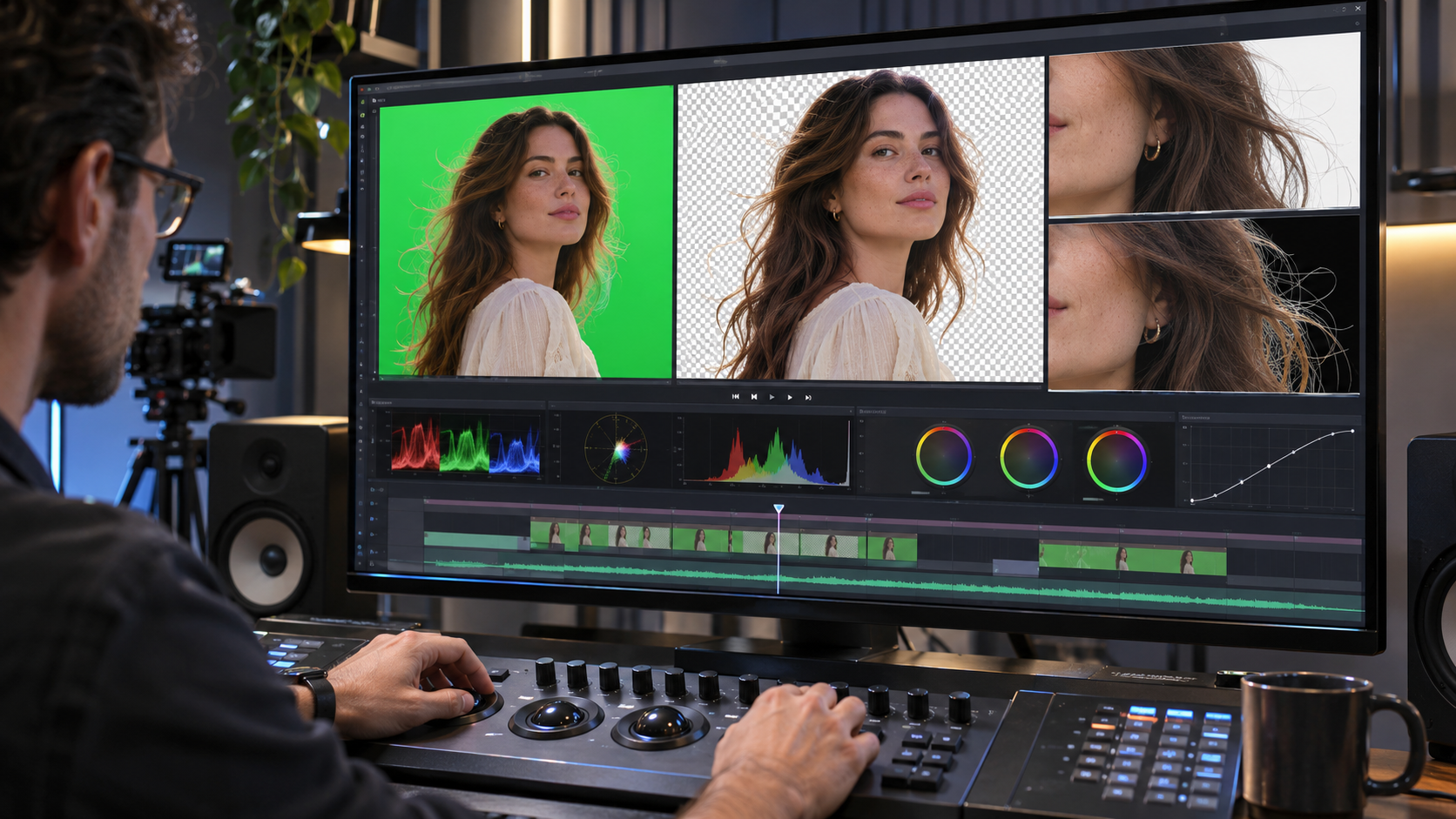
A sensible way to test 4K footage
- Keep the original 4K file and check its format, duration, and file size before opening the tool.
- Start with a representative short section that includes hair, motion, hands, reflective objects, and the most uneven part of the screen.
- Open the green-screen removal tool and upload the supported MP4, MOV, or WebM source if it is within the 500MB limit.
- Use Auto Detect for the current green target or sample an evenly lit area of the screen. Avoid shadows, hotspots, and areas covered by the subject.
- Inspect the first cutout on the checkerboard and against light and dark backgrounds. Compare fine edges before changing several controls.
- Make small Strength and Edge adjustments, then use Spill Removal only after the main subject shape is stable.
- Choose a 720p or 1080p export based on the destination, and test the downloaded result in the application where it will be used.
What extra source detail can and cannot do
A 4K source can make a useful difference when the final frame is smaller. Downscaling a well-lit, sharply captured subject can make small edge imperfections less conspicuous, and the larger source gives you more pixels to inspect while diagnosing the key. This is most helpful for hair, thin clothing edges, and small props that would be difficult to judge in a low-resolution original.
More pixels cannot recreate information that the camera never captured. Motion blur, green reflections, heavy compression, clipped exposure, and a subject that contains the screen color remain difficult at any resolution. If the green screen is uneven or the subject is too close to it, increasing output resolution will not fix the underlying separation problem.
Treat the source as evidence, not a promise. Review the original and removed views at several points in the clip. If a detail disappears in the key, reduce the aggressive setting or improve the recording rather than assuming that 4K requires a stronger Strength value.
Browser limits matter for large files
Standard RemoveGreen processing is designed around a browser-first workflow. A 4K file asks the browser to decode more data and may use more memory than a smaller source. The exact experience depends on the browser, device, codec, duration, and other tabs or applications competing for memory.
For a reliable diagnosis, test a short representative clip first and close unnecessary heavy applications. If the browser cannot play or process the source smoothly, make a copy at a manageable resolution for testing while keeping the original 4K master. That test can reveal whether the problem is the footage and key settings or simply the device workload.
The separate AI Green Screen Cleanup workflow is not an automatic 4K solution. It requires sign-in, explicitly uploads the source for temporary processing, shows an estimated Credits cost before confirmation, and currently supports videos up to 60 seconds. Check the current product information before using it for a difficult clip.
Choose the final resolution from the destination
If the destination needs a 1080p video, a 4K master can be a strong starting point even though the final export is 1080p. If the destination truly requires a 4K deliverable, the current RemoveGreen export choices do not meet that requirement; keep the keyed result or source master for a workflow that supports 4K output.
Transparent WebM and composited MP4 are also different deliverables. Use transparent output when the next application needs a reusable foreground, and choose a solid, image, or video background when you want a finished composite. Before exporting, read the current resolution, duration, plan, and Credits details shown in the product rather than relying on a general 4K assumption.
Finally, test the downloaded file in its destination. Check the actual pixel dimensions, transparency behavior if relevant, and the difficult edges over a known background. A successful 4K upload is not the same as a verified 4K export.
Frequently asked questions
Can RemoveGreen accept a 4K video?
Yes. The current uploader accepts MP4, MOV, and WebM files up to 500MB, so a 4K source can be selected if it meets the file-size and browser requirements.
Does RemoveGreen export 4K green-screen video?
No. The current product export choices are 720p and 1080p, not 4K. A 4K source may therefore be downscaled for the available export path rather than delivered as a 4K file.
Can I preview 4K footage in the browser?
You can use the browser-first Chroma Key workflow to test a supported clip, but playback and memory demands vary by browser, device, codec, duration, and file size. A short representative section is the safest first test.
Does 4K automatically produce a cleaner key?
No. Extra source pixels can help preserve detail, but uneven lighting, motion blur, green spill, compression, and a subject that shares the screen color can still limit the result.